> ## Documentation Index
> Fetch the complete documentation index at: https://docs.streampixel.io/llms.txt
> Use this file to discover all available pages before exploring further.
# Prepare a VR experience
> In-engine changes for delivering a VR Streampixel experience.
**VR streaming is experimental.** Pixel Streaming for VR is still under active development by Epic Games and is **not production-ready**. Expect rough edges around input mapping, head-tracking jitter, and codec / framerate stability. Use it for prototypes, demos, and internal testing — not for shipping consumer experiences.
Streampixel doesn't have a separate VR build target — you still [package for Windows](/resources/quick-start-guide/prepare-your-unreal-engine-project-for-windows) like every other Streampixel project. The difference for VR is **inside Unreal**: start from the VR template, disable OpenXR (it conflicts with Pixel Streaming), and patch the teleport function. Once those are done, you package as Windows and upload the zip the same way as any other build.
## 1. Create from the VR template
Launch from the Epic Games Launcher.
On the **New Project** screen → **Games** → **Virtual Reality**.
Set the project name and location, then **Create**.
## 2. Enable Pixel Streaming
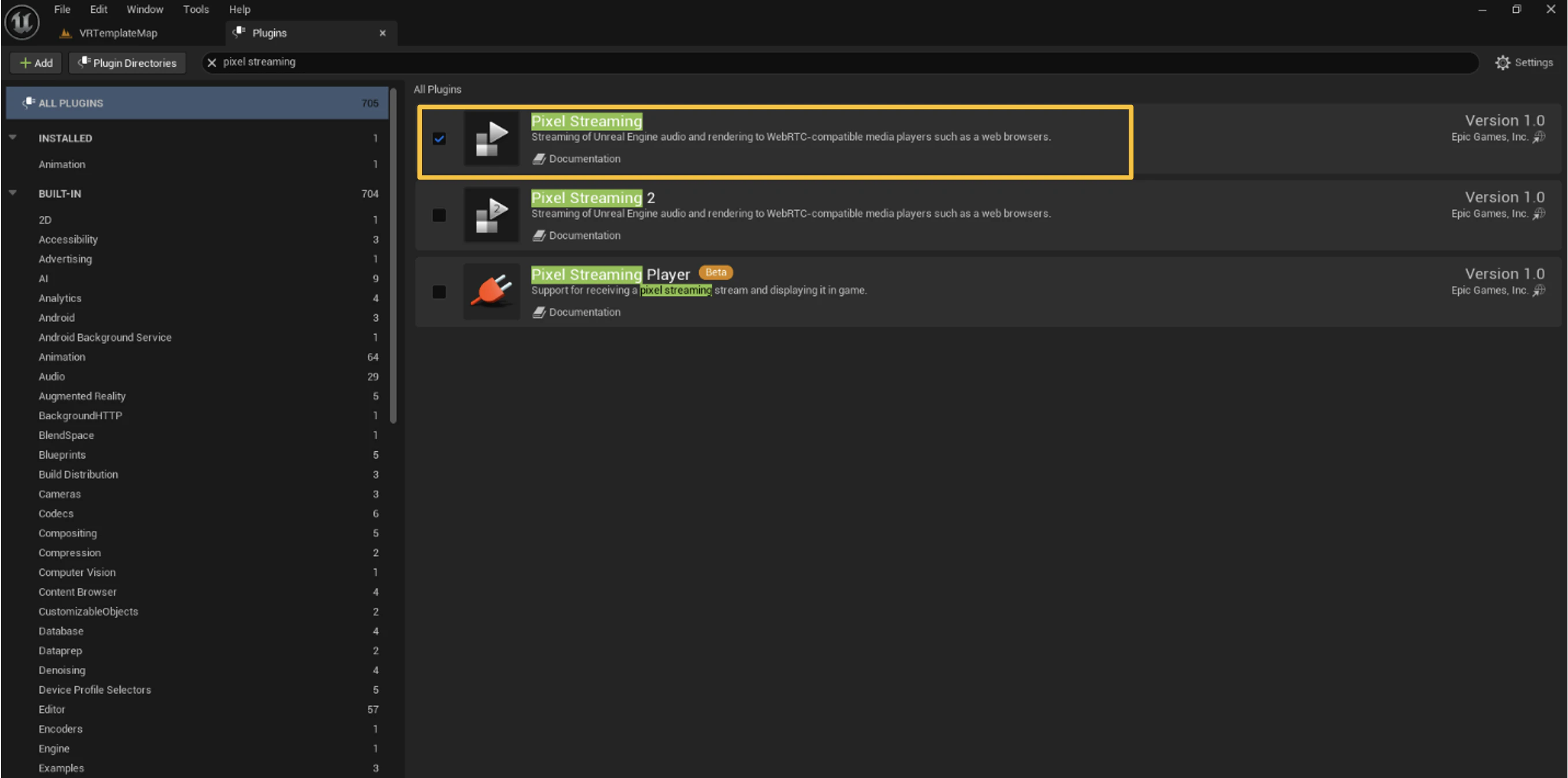
**Edit → Plugins**, search "Pixel Streaming".
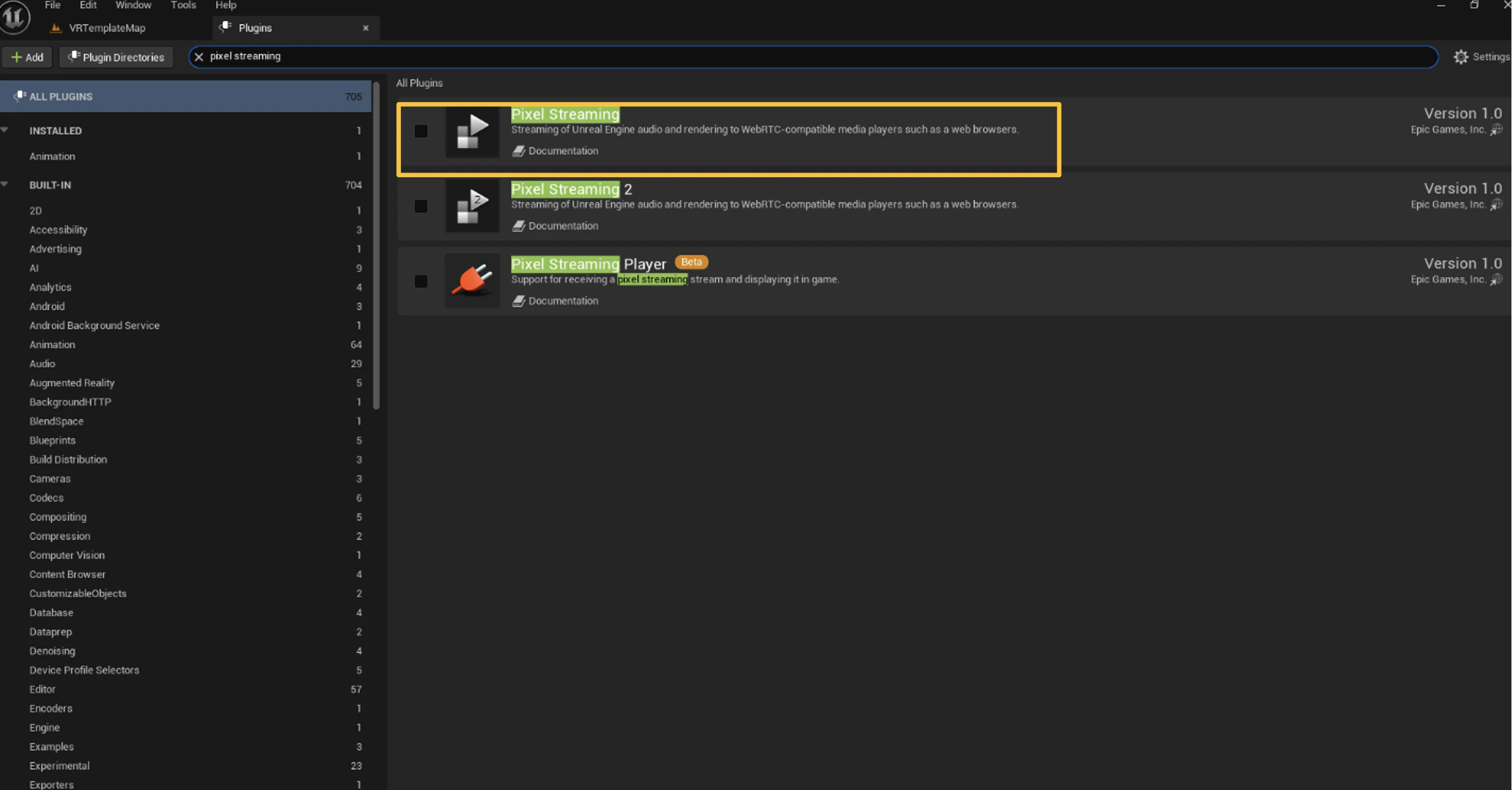 Check **Enabled**, then click **Restart Now**.
 ## 3. Disable OpenXR
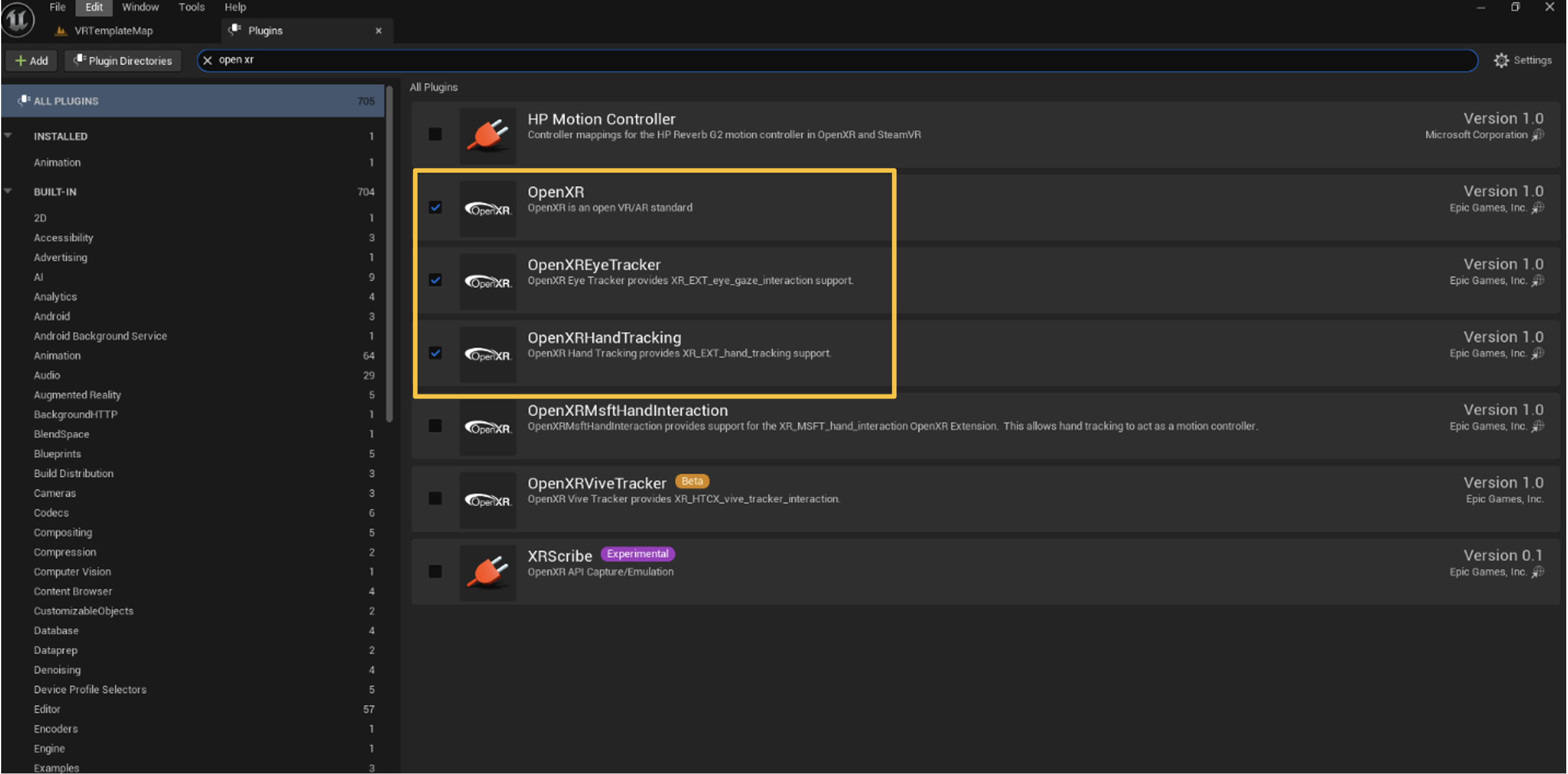
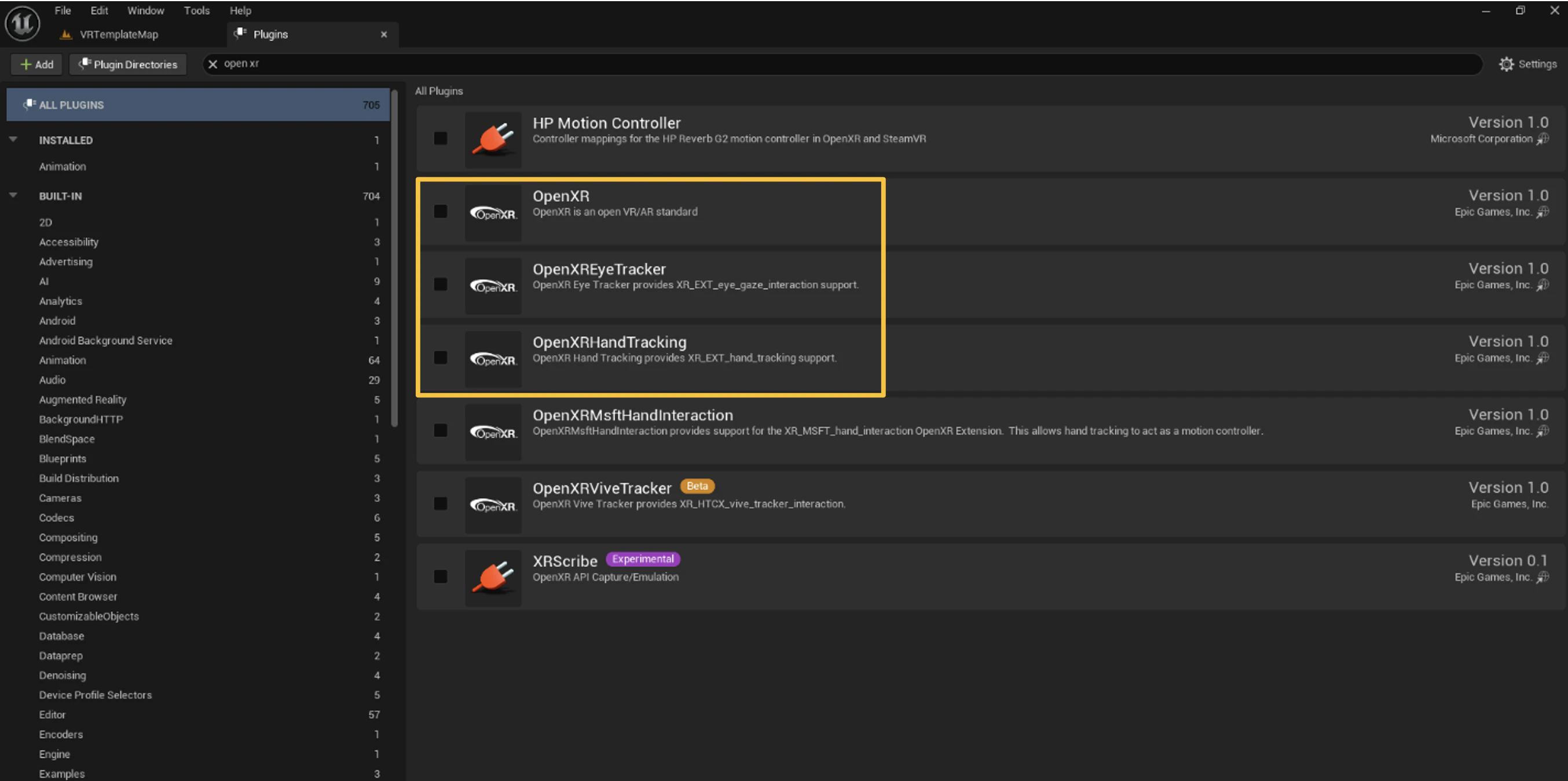
OpenXR conflicts with Pixel Streaming. Disable it before packaging.
## 3. Disable OpenXR
OpenXR conflicts with Pixel Streaming. Disable it before packaging.
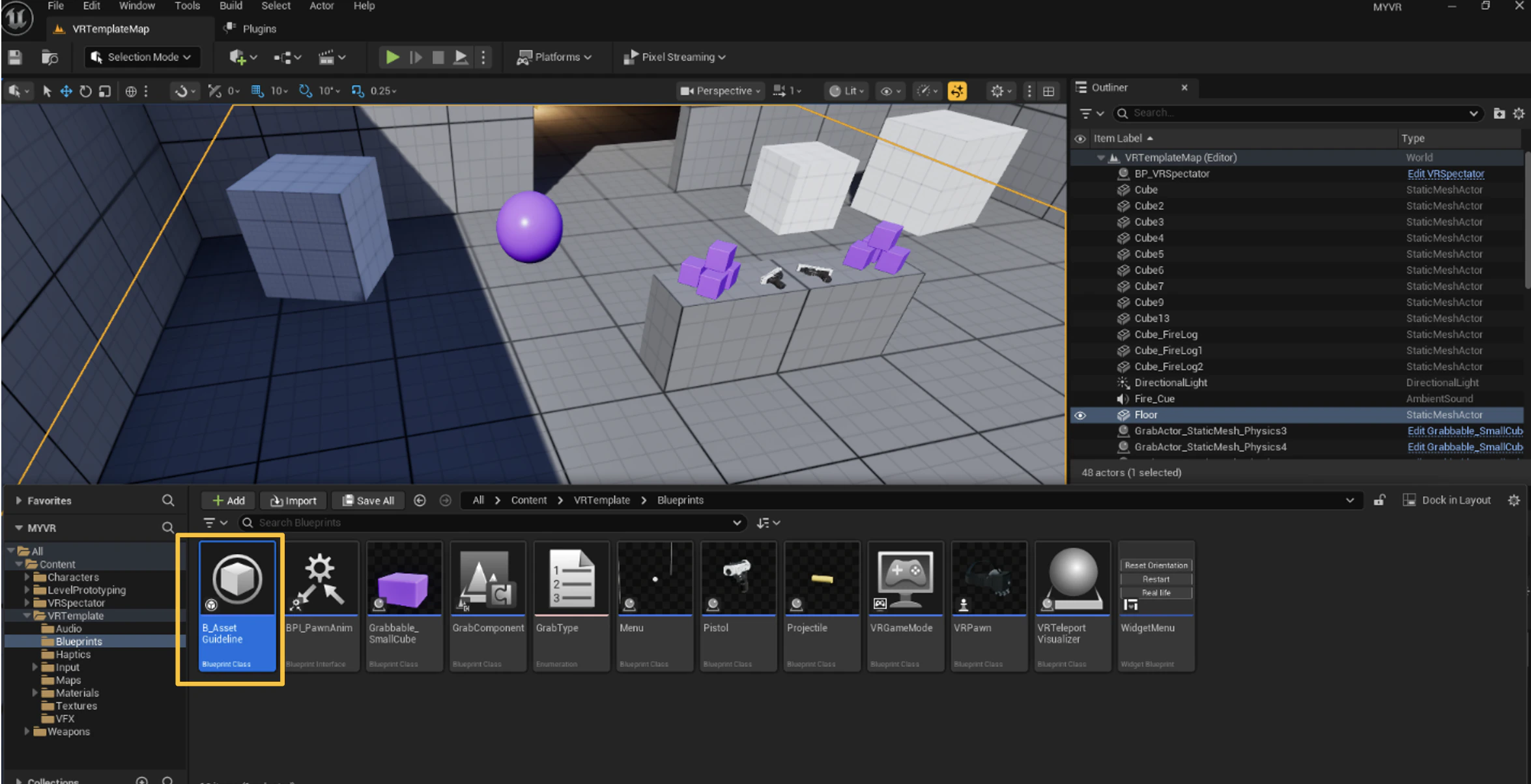
 ## 4. Delete BP\_AssetGuideline
The default VR template ships an asset that breaks Pixel Streaming. Delete it.
`Ctrl + Space`.
Path: `/All/Game/VRTemplate/Blueprint/BP_AssetGuideline`.
## 4. Delete BP\_AssetGuideline
The default VR template ships an asset that breaks Pixel Streaming. Delete it.
`Ctrl + Space`.
Path: `/All/Game/VRTemplate/Blueprint/BP_AssetGuideline`.
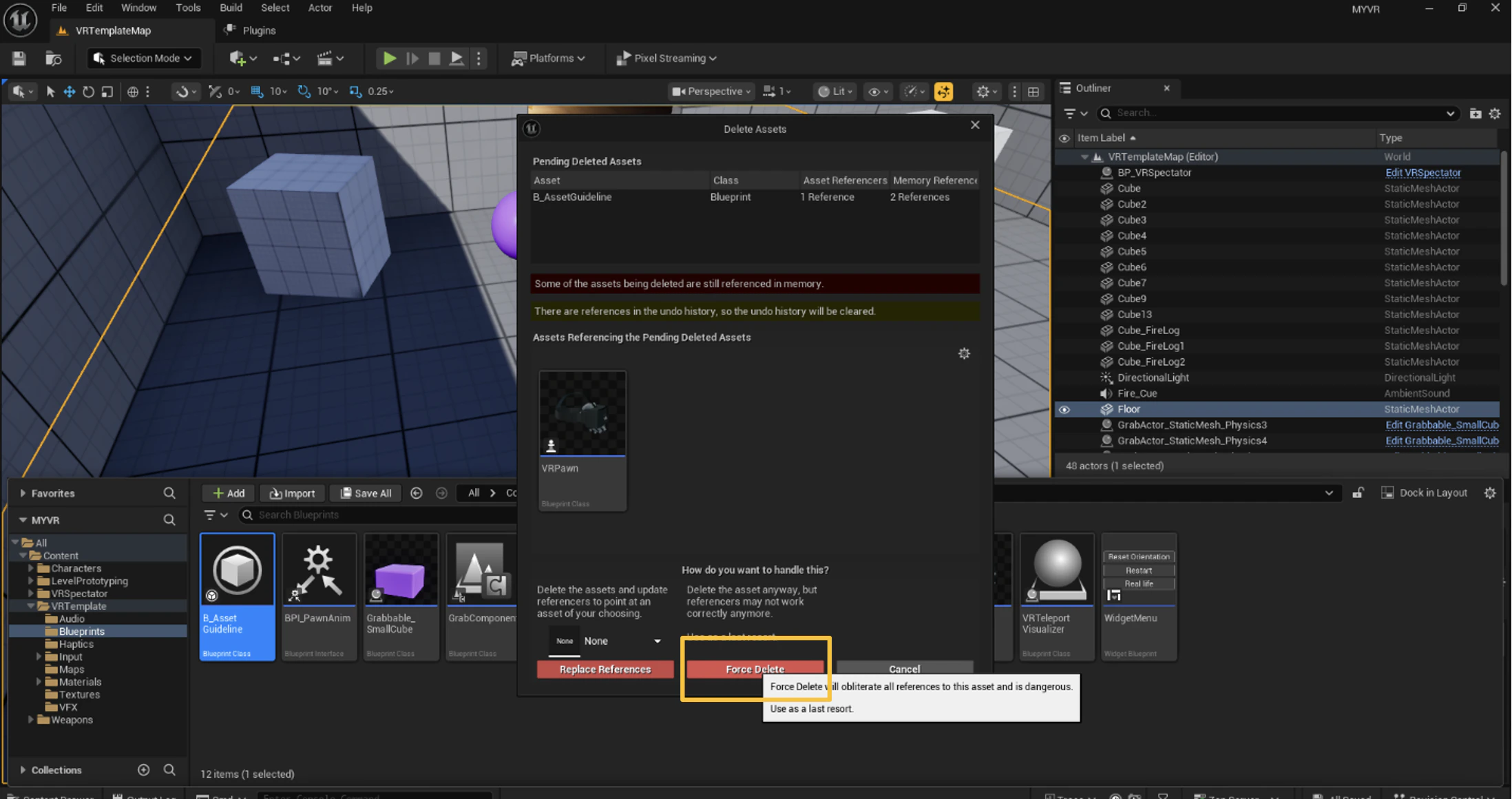
 Select, press **Delete**, click **Force Delete**.
 ## 5. Patch the TryTeleport function
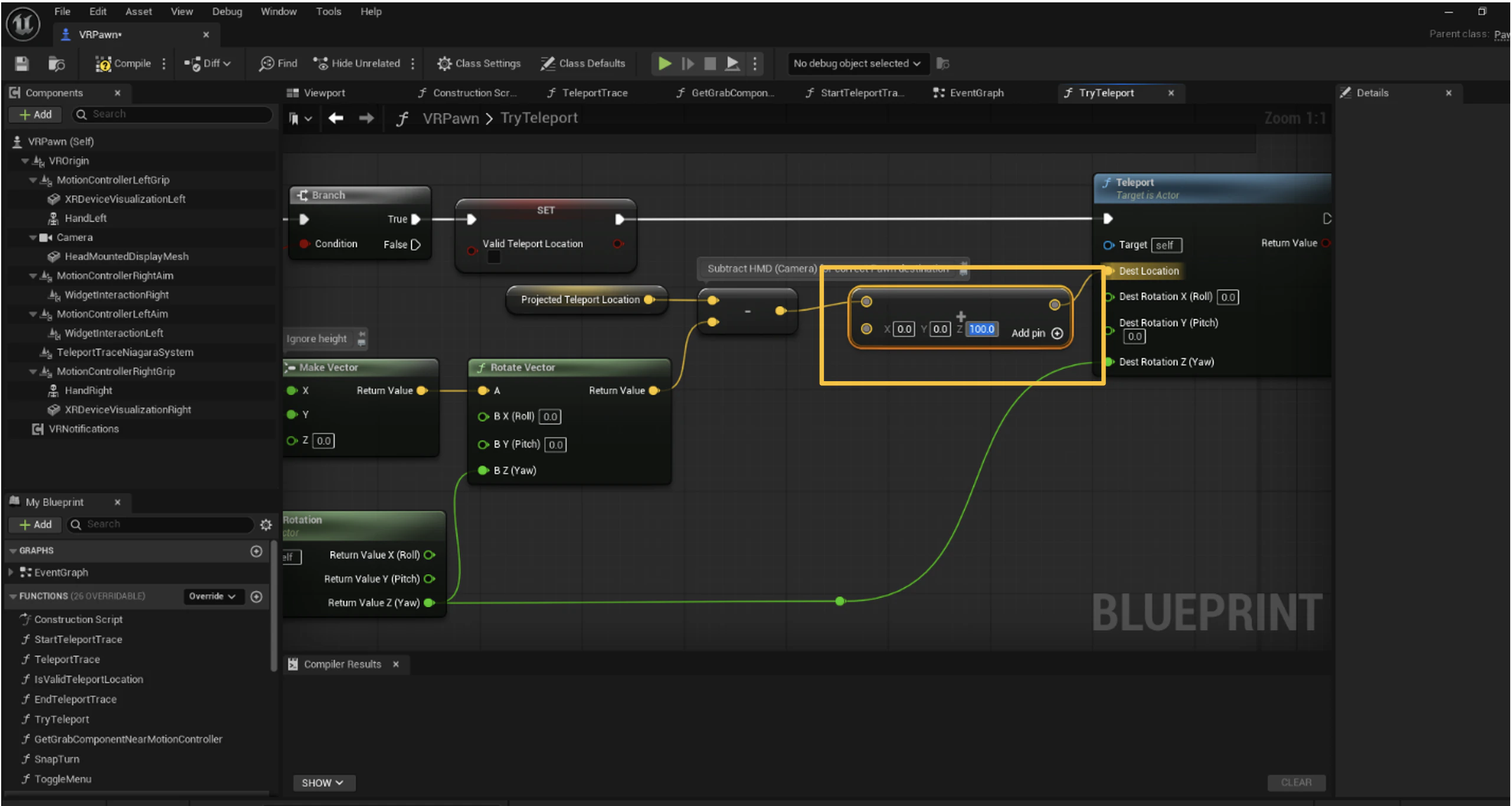
The default teleport drops the player below floor level when streamed. Add 100 to the Z value to fix it.
In the Content Browser.
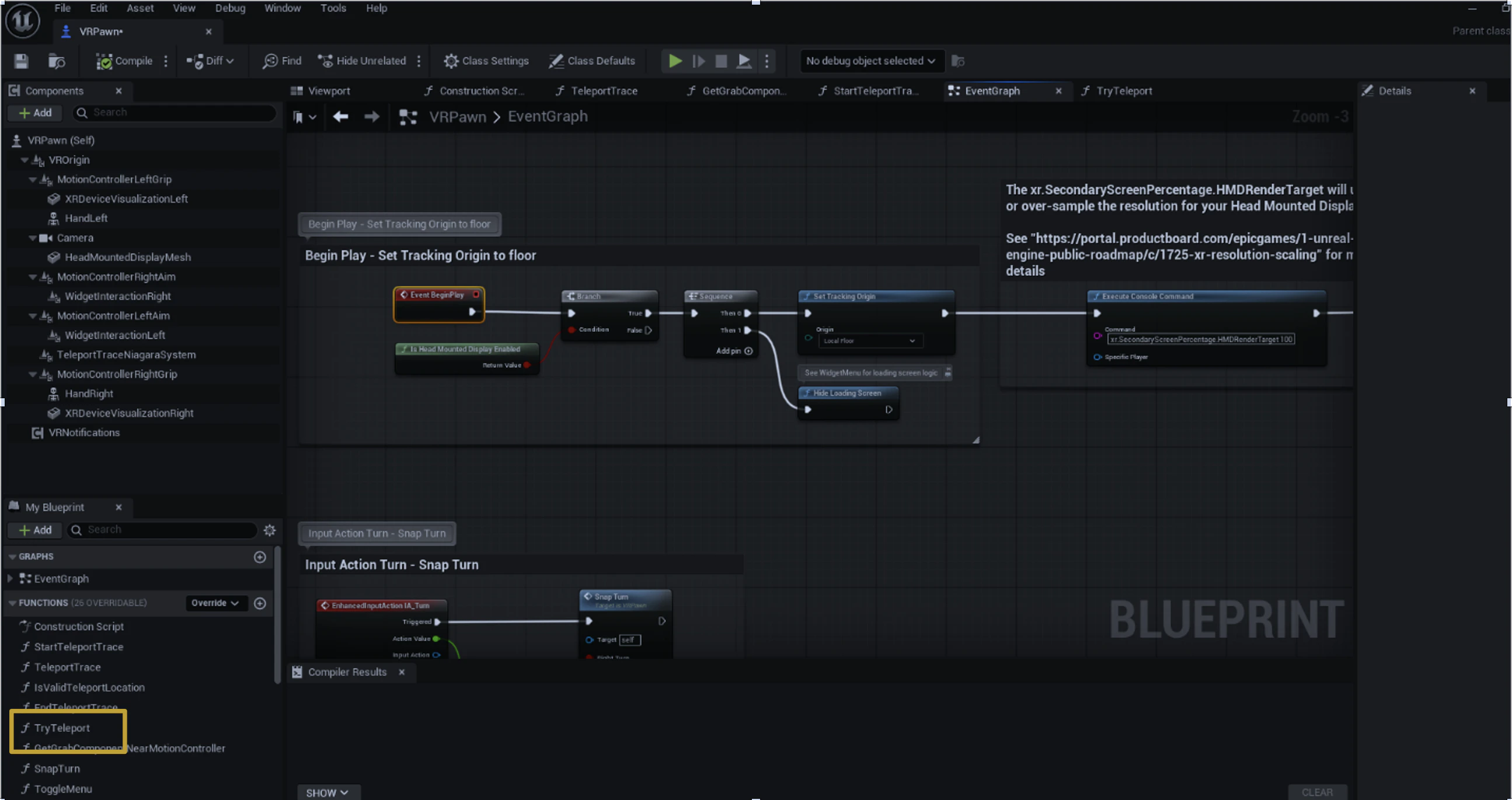
Left panel **My Blueprint** → Functions → **TryTeleport**.
## 5. Patch the TryTeleport function
The default teleport drops the player below floor level when streamed. Add 100 to the Z value to fix it.
In the Content Browser.
Left panel **My Blueprint** → Functions → **TryTeleport**.
 Insert an **Add (+)** node, set the value to `100`.
 ## 6. Package and zip
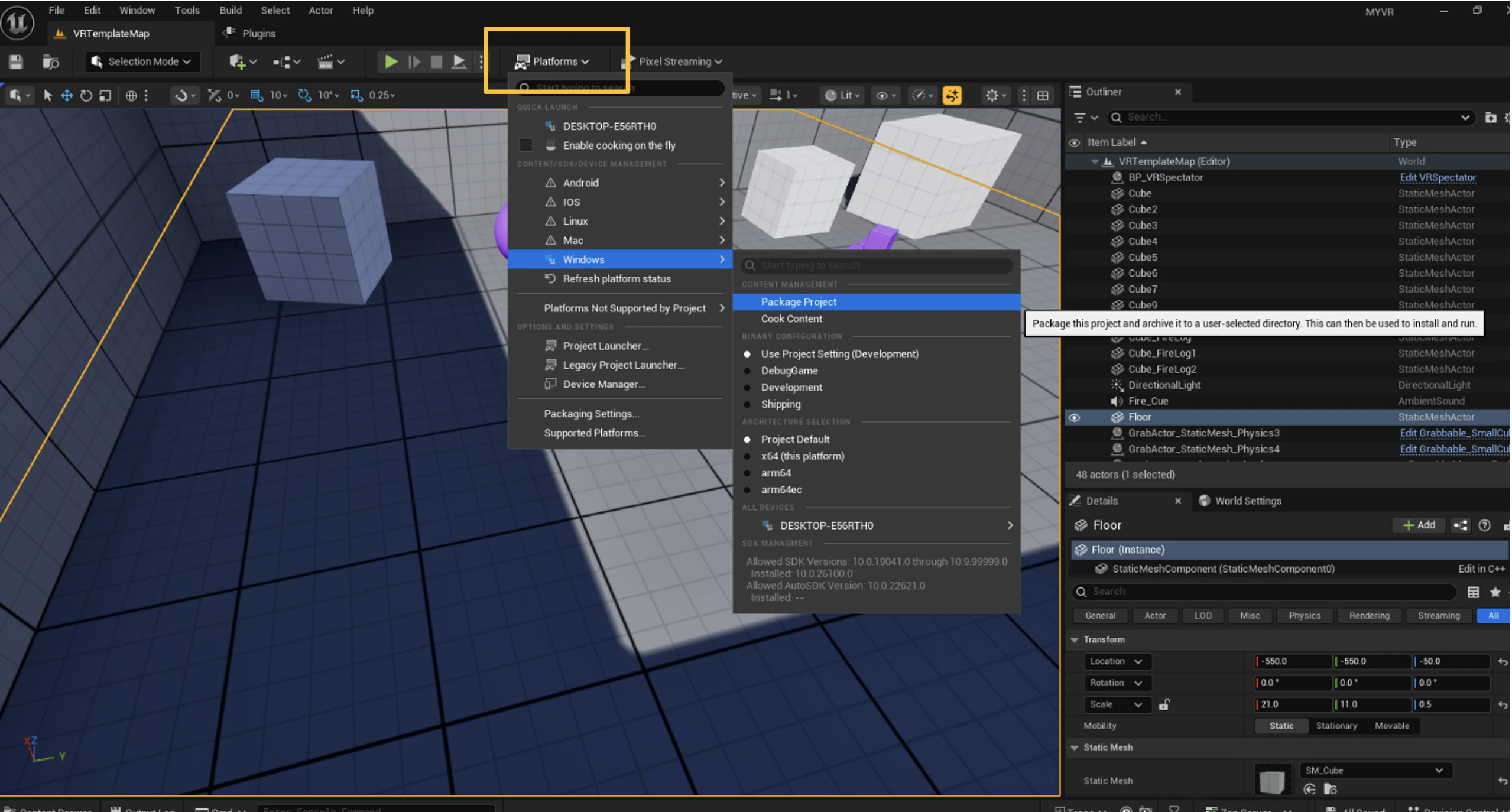
Top toolbar → **Platforms → Windows → Package Project → Windows (64-bit)**.
## 6. Package and zip
Top toolbar → **Platforms → Windows → Package Project → Windows (64-bit)**.
 Open the output folder, select all (`Ctrl + A`), compress to a `.zip`.
Upload the zip from the dashboard or via the [Upload File API](/resources/api-reference/upload-file-api).
## 7. Enable WebXR input in the dashboard
After uploading, open your project's **Settings → Input** tab in the dashboard and toggle **XR** on. Without this, the headset's controllers and head pose won't reach your build, even if the rest of the VR setup is correct.
## Next
Recipe for embedding the VR build with WebXR controls.
Get the zip onto Streampixel.
Open the output folder, select all (`Ctrl + A`), compress to a `.zip`.
Upload the zip from the dashboard or via the [Upload File API](/resources/api-reference/upload-file-api).
## 7. Enable WebXR input in the dashboard
After uploading, open your project's **Settings → Input** tab in the dashboard and toggle **XR** on. Without this, the headset's controllers and head pose won't reach your build, even if the rest of the VR setup is correct.
## Next
Recipe for embedding the VR build with WebXR controls.
Get the zip onto Streampixel.