# Mouse Settings
## Overview
There may be times when you want to fully disable the mouse within Unreal Engine and rely solely on the frontend mouse controls or completely remove mouse interactions.
***
### **Configuring Mouse Behavior in Pixel Streaming**
The approach to mouse interaction depends on whether your UI is handled within a web browser or directly inside Unreal Engine.
***
## **For Web-Based UI**
#### **Hiding Unreal Engine’s Mouse Cursor**
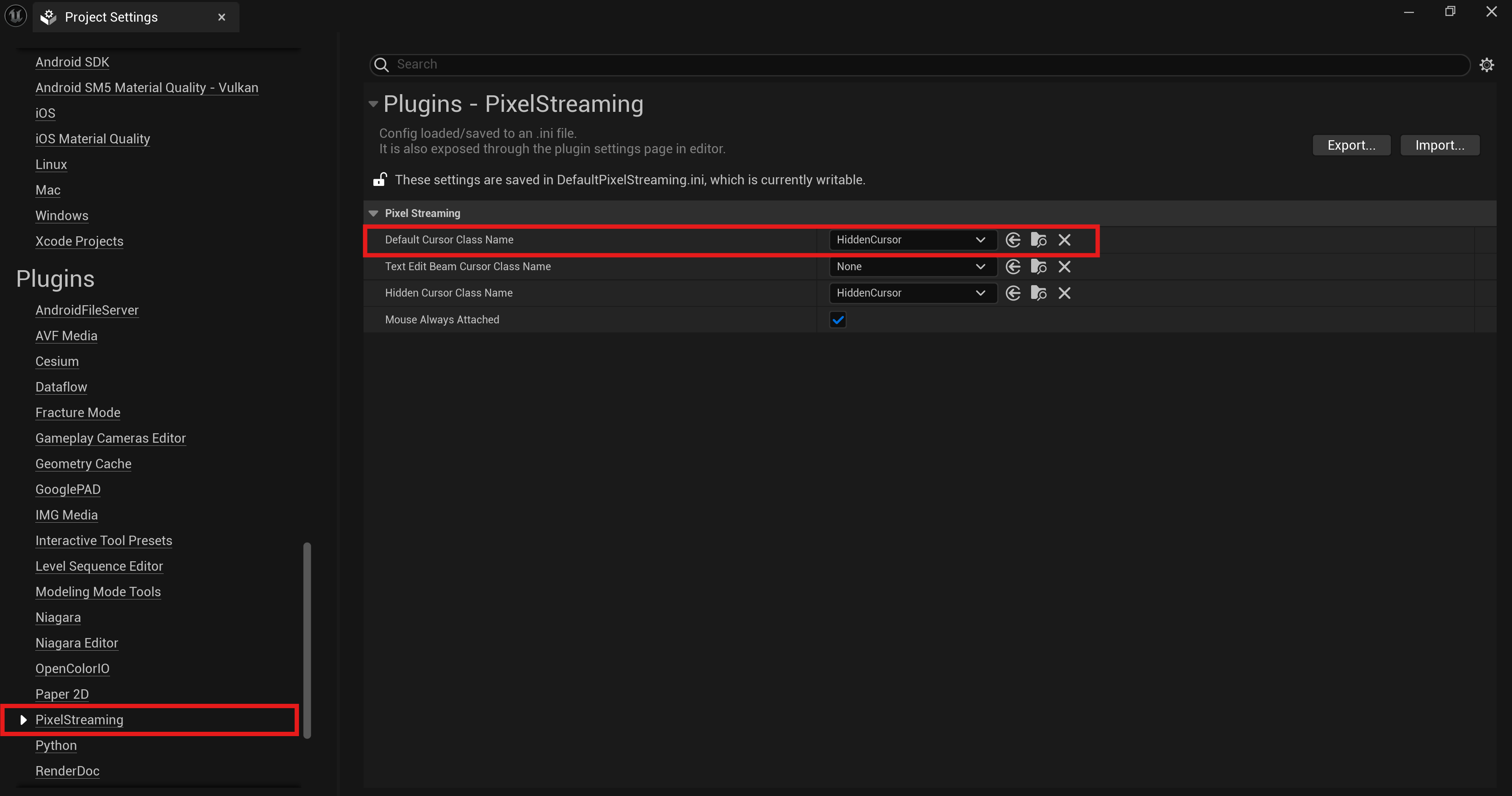
* Open **Project Settings > Plugins > Pixel Streaming**.
* Set **Default Cursor Class Name** to **`HiddenCursor`**.
* This prevents Unreal Engine from displaying an extra cursor when using a web UI.
#### **Adjusting Mouse Capture and Lock Settings**
* Navigate to **`Edit` > `Project Settings` > Engine > `Input`**.
* Set **Default Viewport Mouse Capture Mode** to **`Capture Permanently` Including Initial Mouse Down** to ensure all clicks are registered.
* Set **Default Viewport Mouse Lock Mode** to **`Do Not Lock`**, allowing users to interact with web elements without manually unlocking the cursor.
* Some external settings may override this, but it’s useful for local testing.
#### **Disabling Hovering Mouse on Streampixel**
* Navigate to **Project Settings > `Hovering Mouse`** in your streaming platform.
* Set **Hovering Mouse** to **`Disabled`** to keep the browser’s default cursor active for seamless interaction with the web UI.
***
## Programmatically Toggling Visibility of Browser-Based Mouse Cursor
There may be times when you want to dynamically toggle the visibility of the browser‑based mouse cursor in your frontend. For example, you may start with the cursor hidden for an immersive experience and later make it visible for UI interactions, or vice versa.
{% embed url="" %}
{% hint style="warning" %}
**Note:** The startup behavior of the mouse cursor depends on the settings in the Project Details page
{% endhint %}
**Sending a Toggle Command from Unreal Engine**
To control cursor visibility from Unreal Engine, you can send a message to the frontend.\
Use the following JSON message format:
Turn on Mouse Visibility
```javascript
{"message": {"type": "togglehoveringmouse", "value": true}}
```
Turn off Mouse Visibility
```javascript
{"message": {"type": "togglehoveringmouse", "value": false}}
```
This ensures you can switch cursor visibility dynamically without restarting the stream.
**Use Cases**
* **Immersive Gameplay:** Hide the cursor during first‑person or cinematic experiences.
* **UI Interaction:** Show the cursor when menus or web‑based UI elements are active.
* **Custom Frontends:** Allow users to switch between cursor modes seamlessly via an in‑app button or event trigger.
{% hint style="info" %}
**Sending the Message via Iframe (Alternative)**
If your stream is embedded inside an iframe, you can also send the same message from the parent page to the iframe. Refer [stream-control-commands](https://docs.streampixel.io/resources/iframe-integration/stream-control-commands "mention")
{% endhint %}
***
## **For In-Game UI**
#### **Enabling Unreal Engine’s Mouse Cursor**
* Open **`Project Settings` > `Plugins` > `Pixel Streaming`**.
* Set **Default Cursor Class Name** to **`DefaultCursor`**.
* If the streaming platform’s **Mouse Lock** feature is enabled, Unreal Engine’s cursor must be visible for in-game interactions.
#### **Configuring Mouse Lock Settings in Unreal Engine**
* Open **`Edit` > `Project Settings` > `Engine` > `Input`**.
* Set **Default Viewport Mouse Capture Mode** to **Capture Permanently Including Initial Mouse Down**.
* Choose a **Mouse Lock Mode** based on your needs:
* **Lock On Capture**
* **Lock Always**
* **Lock in Fullscreen**
* These settings keep the mouse inside the game window, ideal for first-person or interactive experiences.
#### **Enabling Mouse Lock in the Streaming Platform**
* Navigate to **`Settings` > `General` > `Mouse Lock`**.
* Set **Mouse Lock** to **Enabled** to keep the cursor inside the stream window until the user presses ‘Escape’ to unlock it.
***
### **Making Mouse Appear Only in Menus (Optional)**
* If your project has an in-game menu, the mouse should appear only when the menu is open.
* Toggle cursor visibility dynamically using Blueprint nodes:
* **`HiddenCursor`** (to hide the cursor)
* **`DefaultCursor`** (to show the cursor)
* Adjust input modes dynamically:
* **Set Input Mode Game Only** (for gameplay without UI interaction)
* **Set Input Mode Game and UI** (for interactive menus and UI elements)
* Customize these settings based on your project’s needs.