Documentation Index

Fetch the complete documentation index at: https://docs.streampixel.io/llms.txt

Use this file to discover all available pages before exploring further.

This guide walks you through preparing an Unreal Engine VR project for Pixel Streaming, from creating the project to packaging and uploading your build.

Step 1: Create the Project Using the VR Template

1

Open the Epic Games Launcher

Launch Unreal Engine from the Epic Games Launcher.
2

Select the Games category

On the New Project screen, select the Games category.
3

Choose the Virtual Reality template

Choose the Virtual Reality template provided by Unreal Engine.
4

Name and create the project

Set your project name and location, then click Create.

Step 2: Enable the Pixel Streaming Plugin

1

Open the Plugins window

Go to Edit > Plugins from the top menu bar.
2

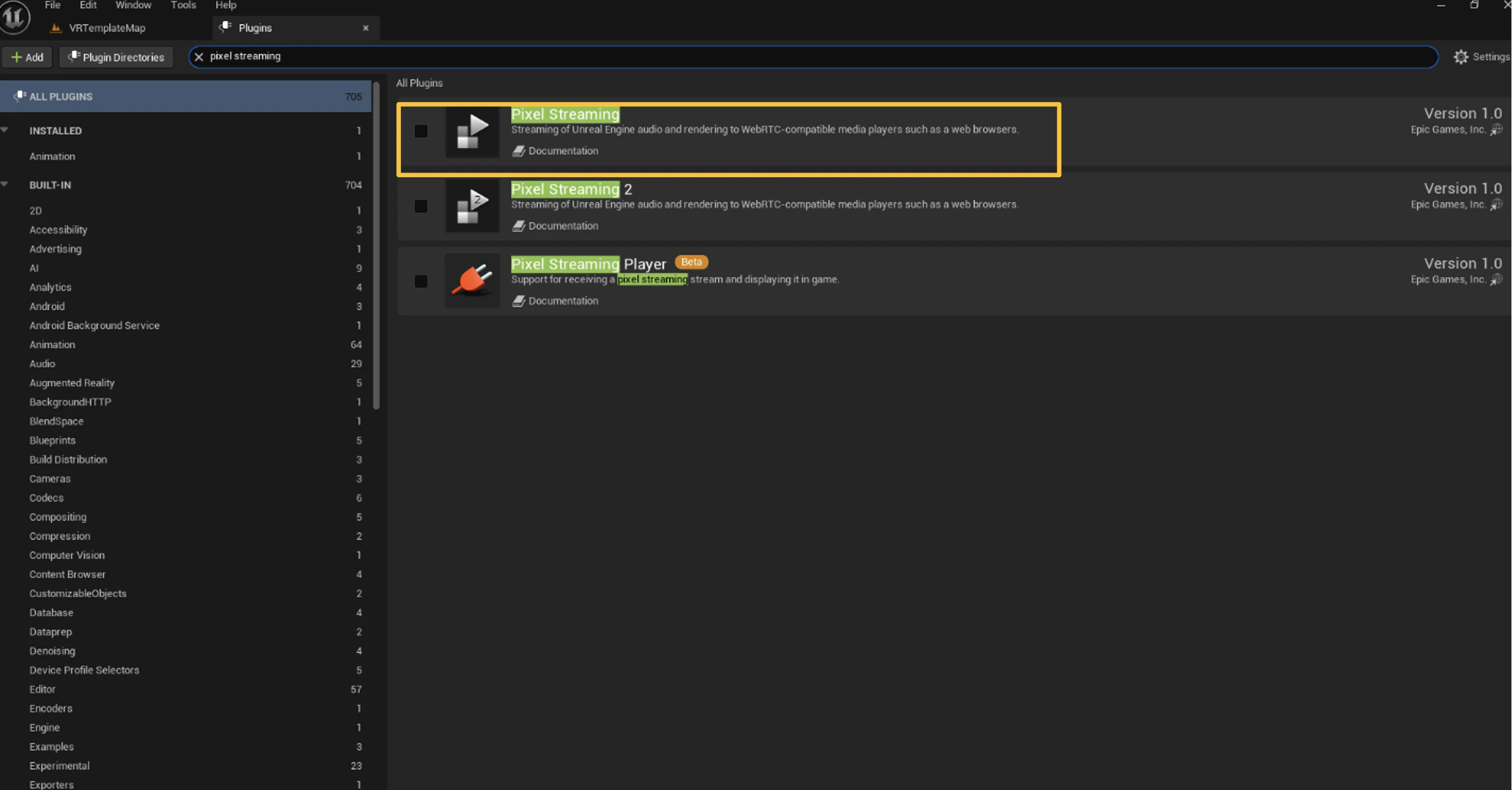
Search for Pixel Streaming

Search for Pixel Streaming in the search bar.
Searching for the Pixel Streaming plugin in the Unreal Engine Plugins window
3

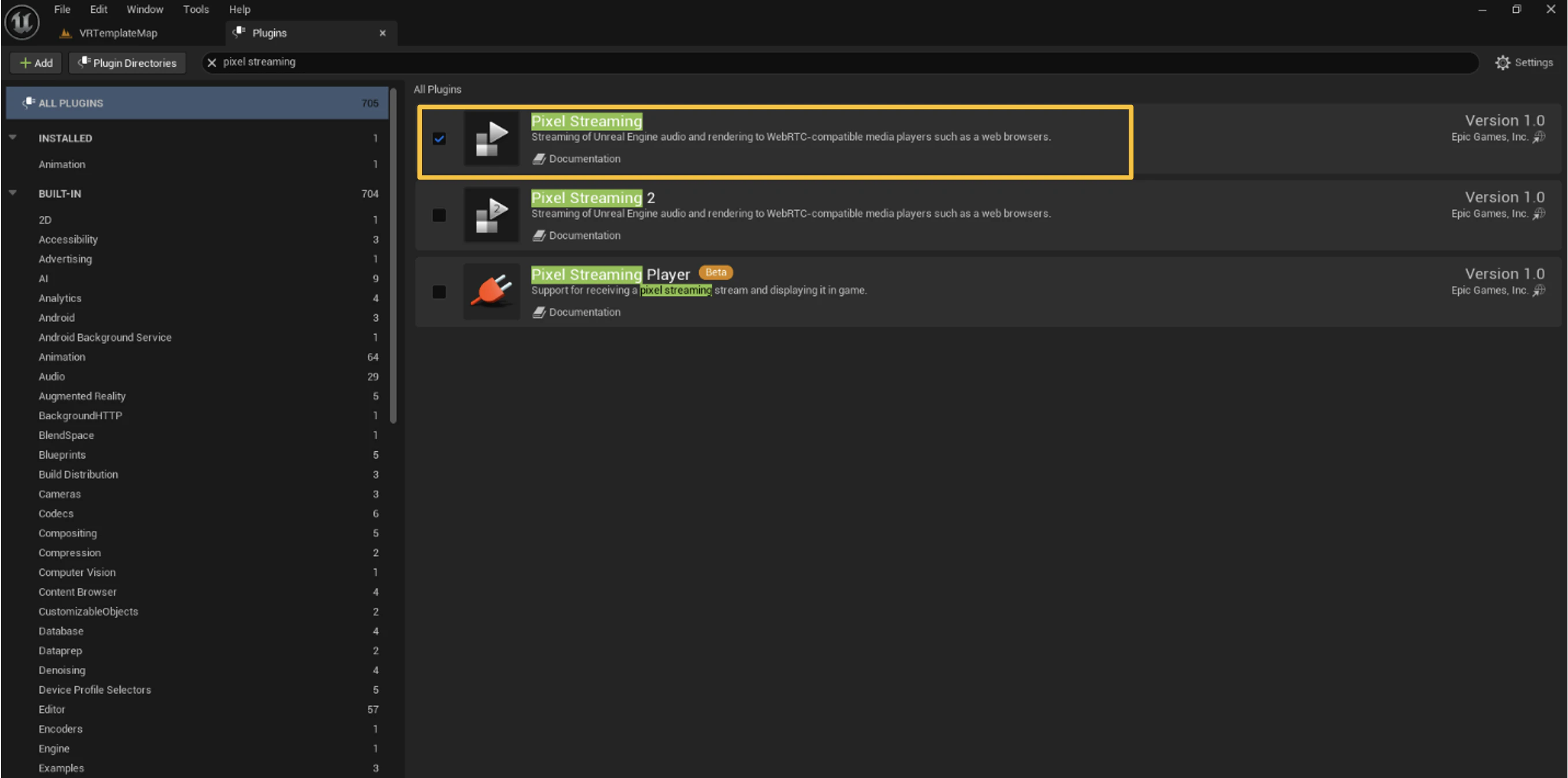
Enable the plugin

Check the Enabled checkbox next to the plugin.
Enabling the Pixel Streaming plugin checkbox in Unreal Engine
4

Restart the editor

Click Restart Now when prompted.

Step 3: Disable the OpenXR Plugin

1

Open the Plugins window

Go to Edit > Plugins from the top menu bar.
2

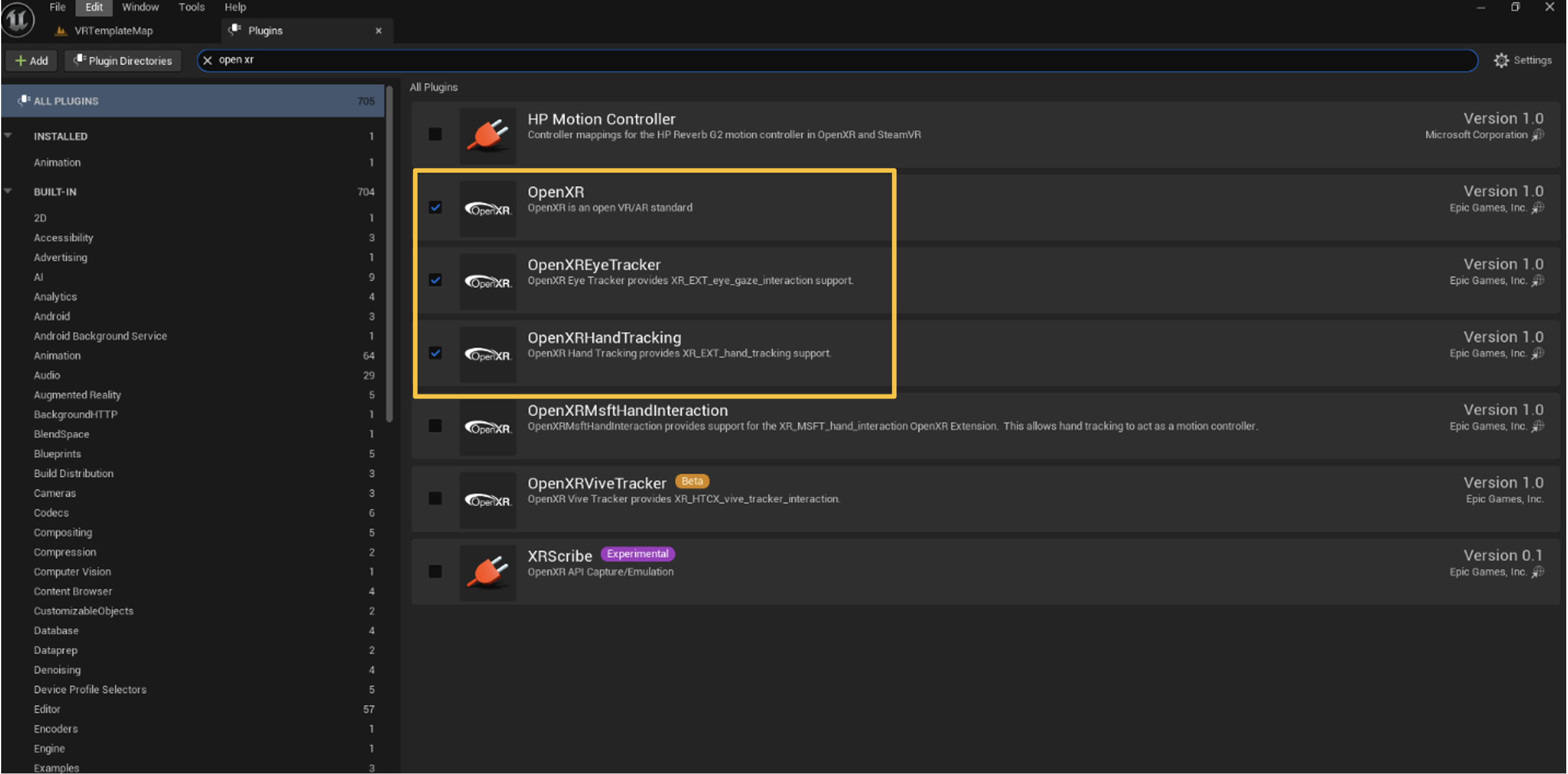
Search for OpenXR

Search for OpenXR in the search bar.
Searching for the OpenXR plugin in the Unreal Engine Plugins window
3

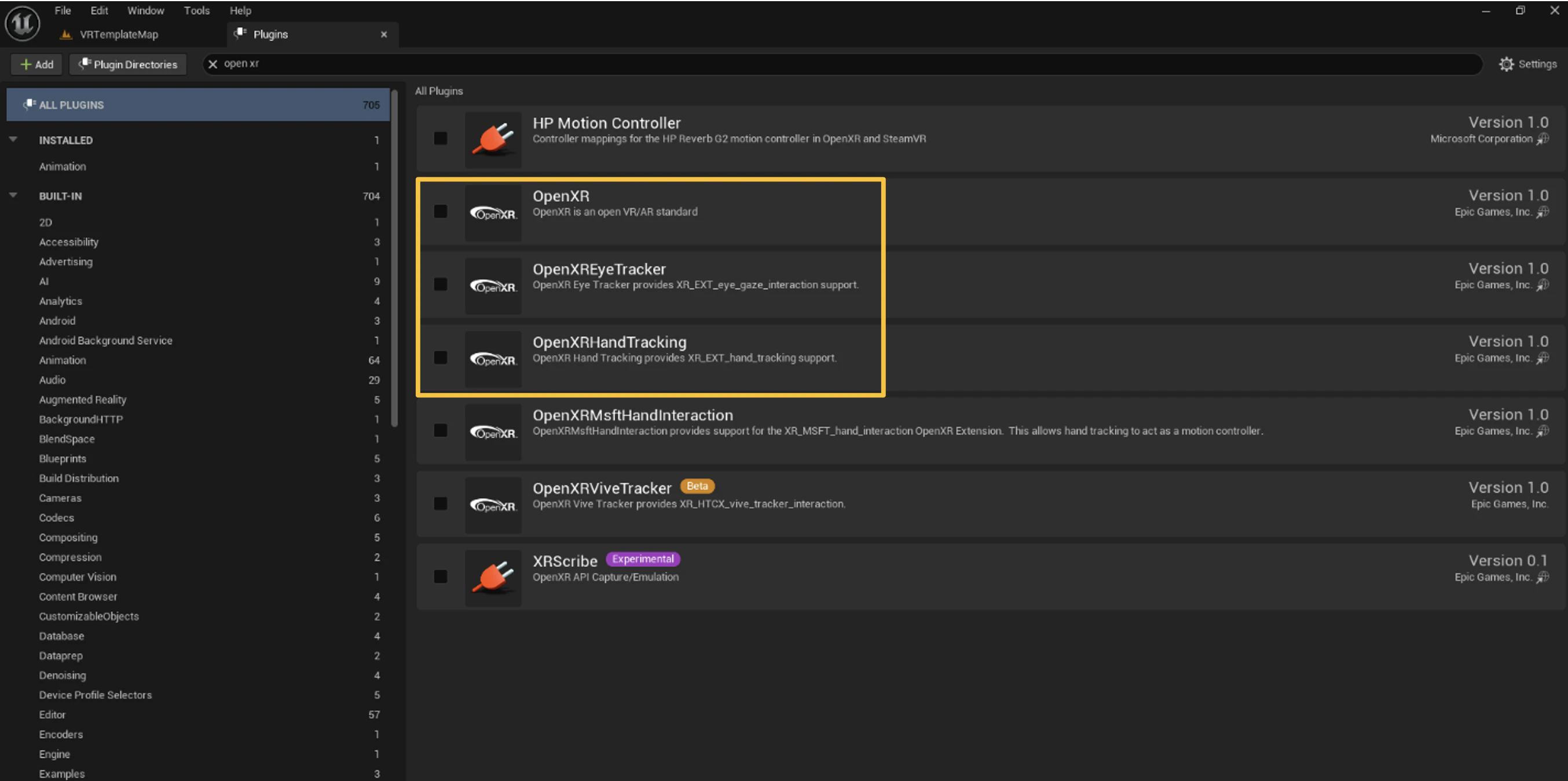
Disable the plugin

Uncheck the Enabled checkbox next to the OpenXR plugin.
Disabling the OpenXR plugin checkbox in Unreal Engine

Step 4: Restart the Unreal Engine Editor

After disabling the OpenXR plugin, Unreal Engine will prompt you to restart.
1

Restart the editor

Click Restart Now to fully apply the plugin changes.
2

Wait for reload

Wait for the editor to reload the project before proceeding.

Step 5: Delete B_AssetGuideline from the Content Browser

1

Open the Content Browser

Open the Content Browser (Ctrl + Space).
2

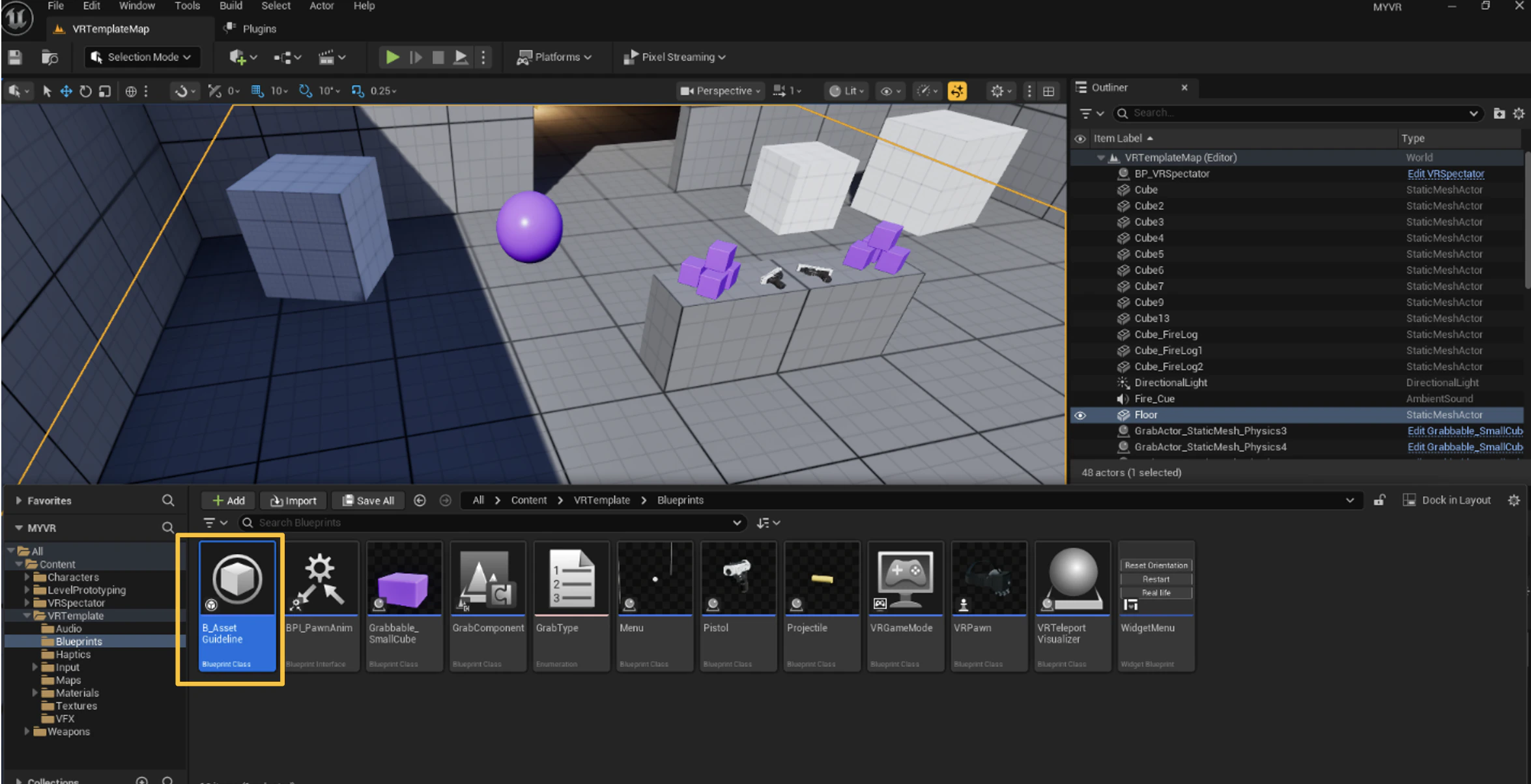
Locate B_AssetGuideline

Search for B_AssetGuideline in the search bar, or navigate directly to:
/All/Game/VRTemplate/Blueprint/B_AssetGuideline
Locating B_AssetGuideline in the Unreal Engine Content Browser
3

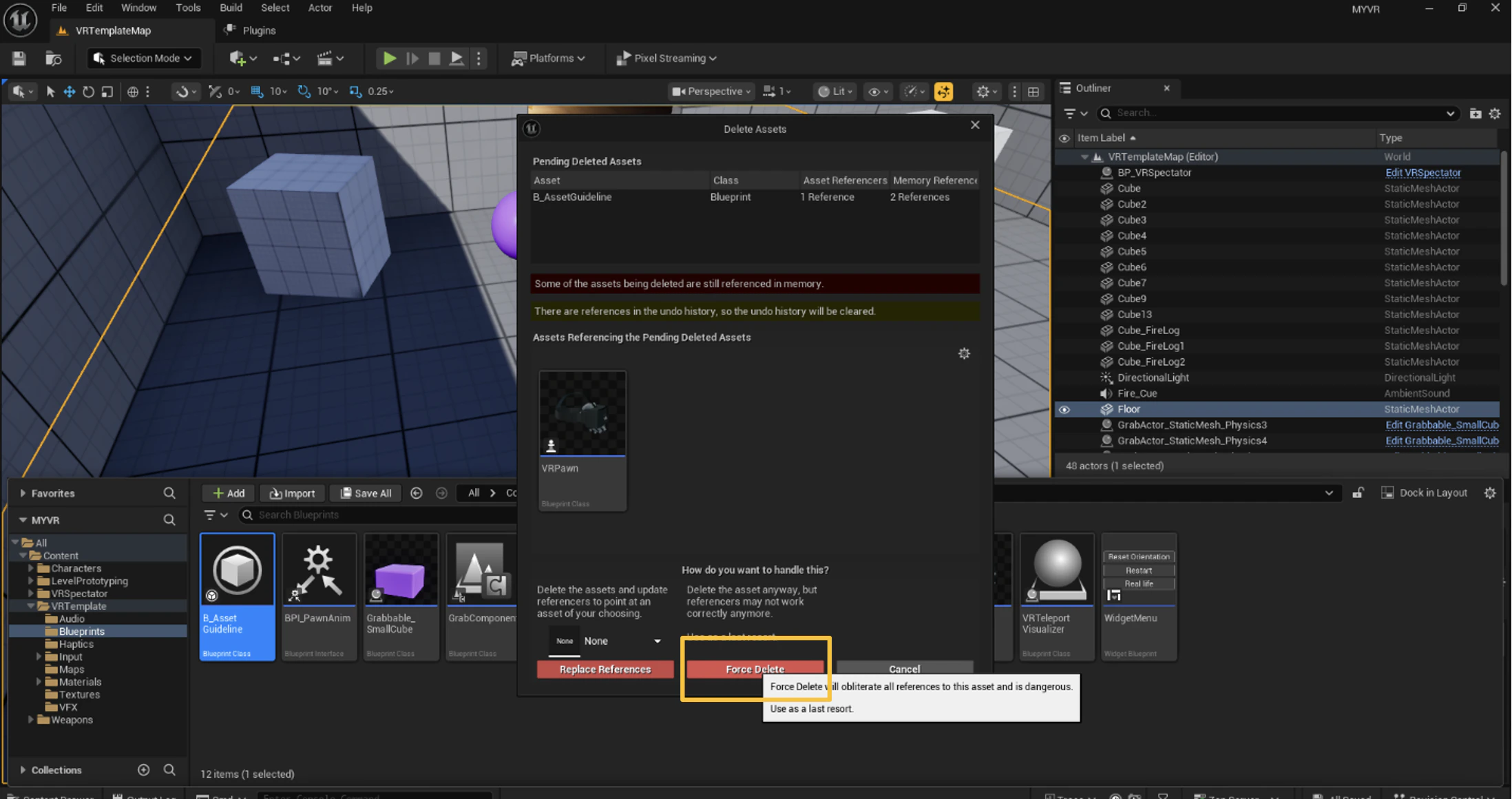
Force delete the asset

Select the asset, press Delete, then click Force Delete in the confirmation dialog.
Force Delete confirmation dialog for B_AssetGuideline

Step 6: Edit the TryTeleport Function in VR Pawn

1

Open the VR Pawn blueprint

In the Content Browser, locate and open the VR Pawn blueprint.
2

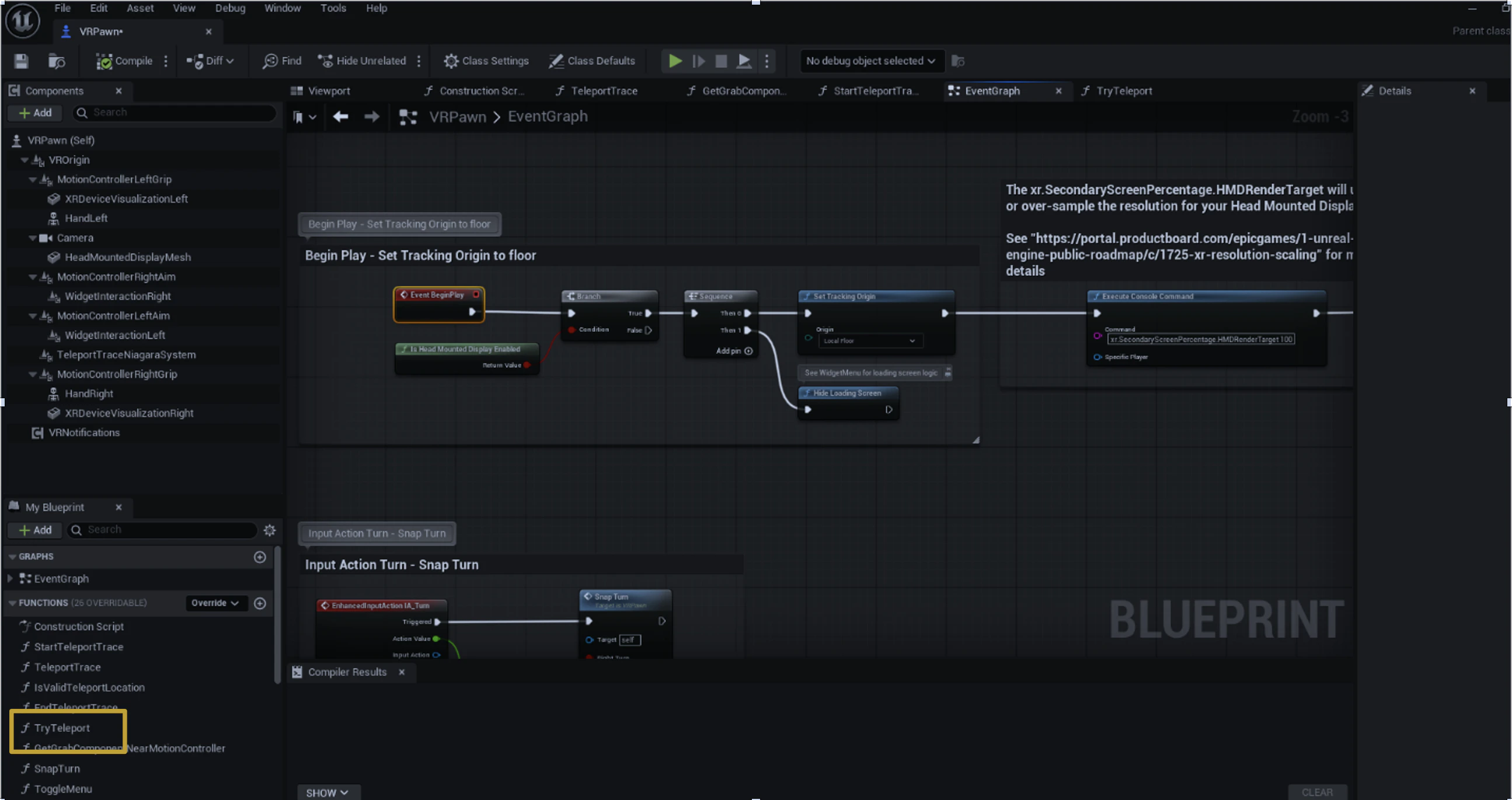
Open TryTeleport

In the left-side My Blueprint panel under Functions, click TryTeleport.
Opening the TryTeleport function from the My Blueprint panel in VR Pawn
3

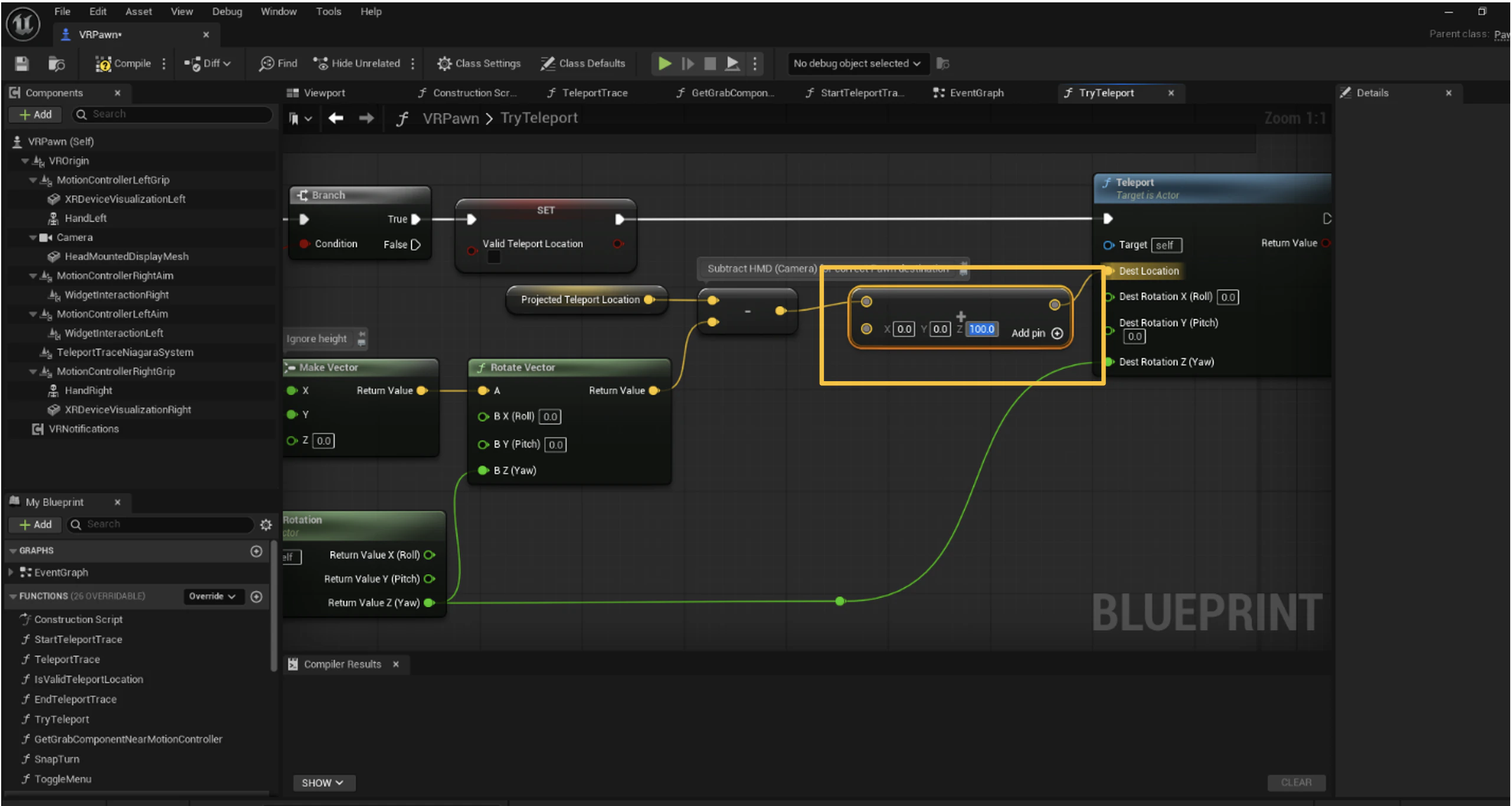
Add an Add node to the Z value

Inside the TryTeleport graph, add an Add (+) operator node to the Z value and set it to 100.
Adding an Add node with Z value set to 100 inside the TryTeleport graph
4

Compile and save

Click Compile, then Save.

Step 7: Package the Project

1

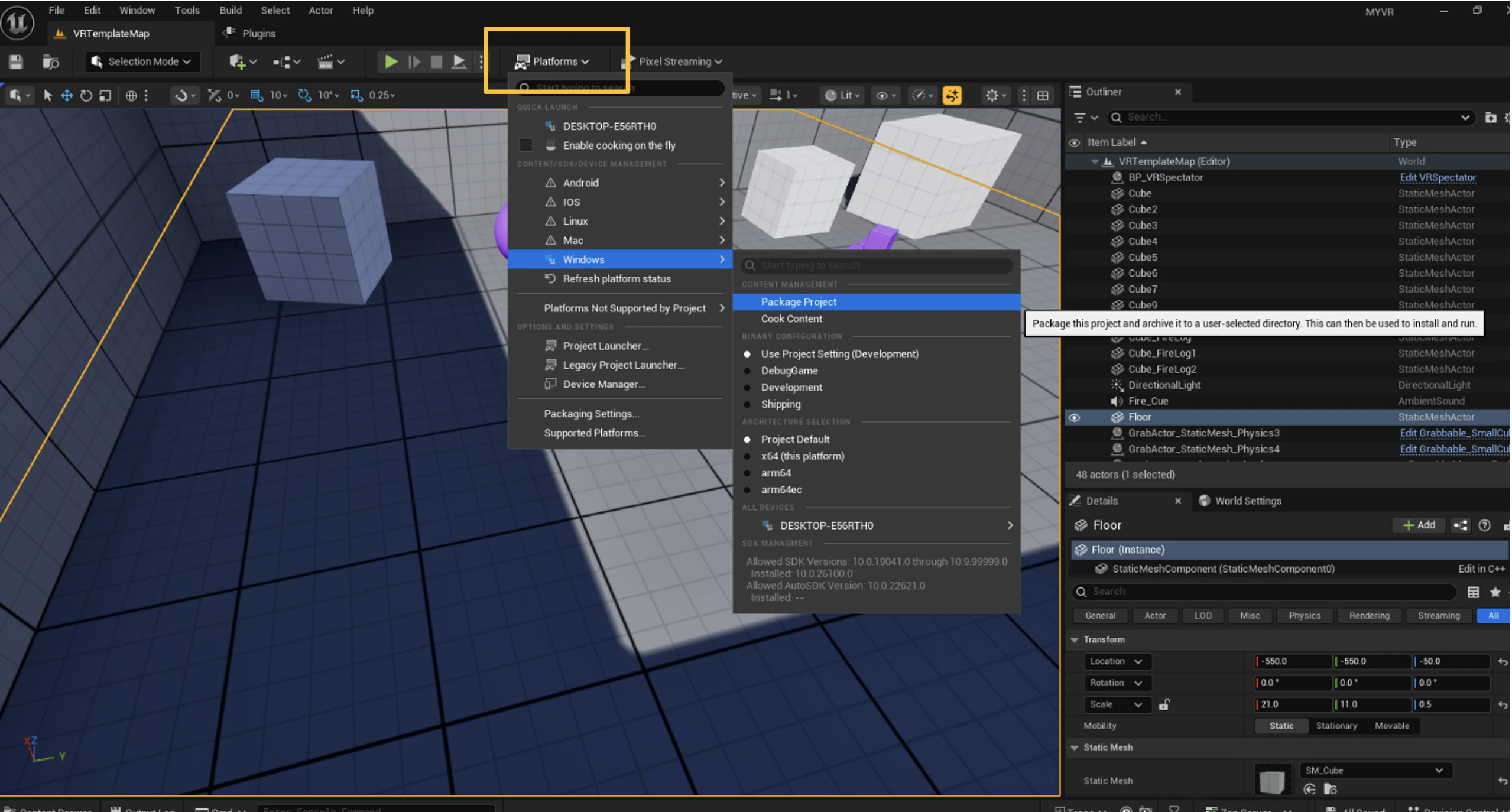
Open the Platforms menu

In the top toolbar, go to Platforms > Windows.
2

Package for Windows (64-bit)

Select Package Project > Windows (64-bit).
3

Choose the output folder

Choose a destination folder for the output.
Packaging the Unreal Engine project for Windows 64-bit
4

Verify the build

Wait for packaging to complete, then verify the .exe is present in the output folder.

Step 8: Create a ZIP and Upload to Pixel Streaming

1

Open the build folder

Navigate to the packaged build output folder.
2

Compress the contents to ZIP

Select all contents (Ctrl + A), right-click, and compress to a ZIP file.
3

Name the ZIP file

Name the file, for example VRProject_PixelStream.zip.
4

Upload to Streampixel

Log in to your Pixel Streaming platform, upload the ZIP, start the stream, and share the URL.
Your VR Unreal Engine project is now ready to stream through Pixel Streaming.