
Documentation Index

Fetch the complete documentation index at: https://docs.streampixel.io/llms.txt

Use this file to discover all available pages before exploring further.

Configure from Project Settings → Resolution.

Resolution modes

ModeBehaviorUse when
Dynamic (default)Resizes to match the viewer’s screen and aspect ratio. No black bars, no distortion.Mixed audience across desktops, tablets, mobiles.
FixedStreams at the exact resolution you pick. Adds black bars to fill the rest.Resolution consistency matters — design reviews, media.
Crop on ResizeResizes to fit initially, then crops on window resize instead of rescaling.Games and interactive content where aspect ratio must hold.

Default start resolutions

DeviceDefault
Desktops1080p (1920×1080)
Tablets1080p (1920×1080)
Mobiles720p (1280×720)
Override per device under Start Resolution Desktops / Tablets / Mobiles.

Supported resolutions

ResolutionDimensionsBest for
360p640×360Low-bandwidth networks.
480p854×480Moderate networks, older phones.
720p (HD)1280×720Mobile, moderate networks.
1080p (Full HD)1920×1080Desktops, tablets, fast networks.
1440p (QHD)2560×1440Large screens, fast networks.
4K (Ultra HD)3840×2160Premium experiences on 4K displays.

Viewer-side resolution control

By default viewers can change resolution from the player UI, capped at the Max Stream Quality you set. Disable Show Resolution Settings to lock viewers to your defaults.
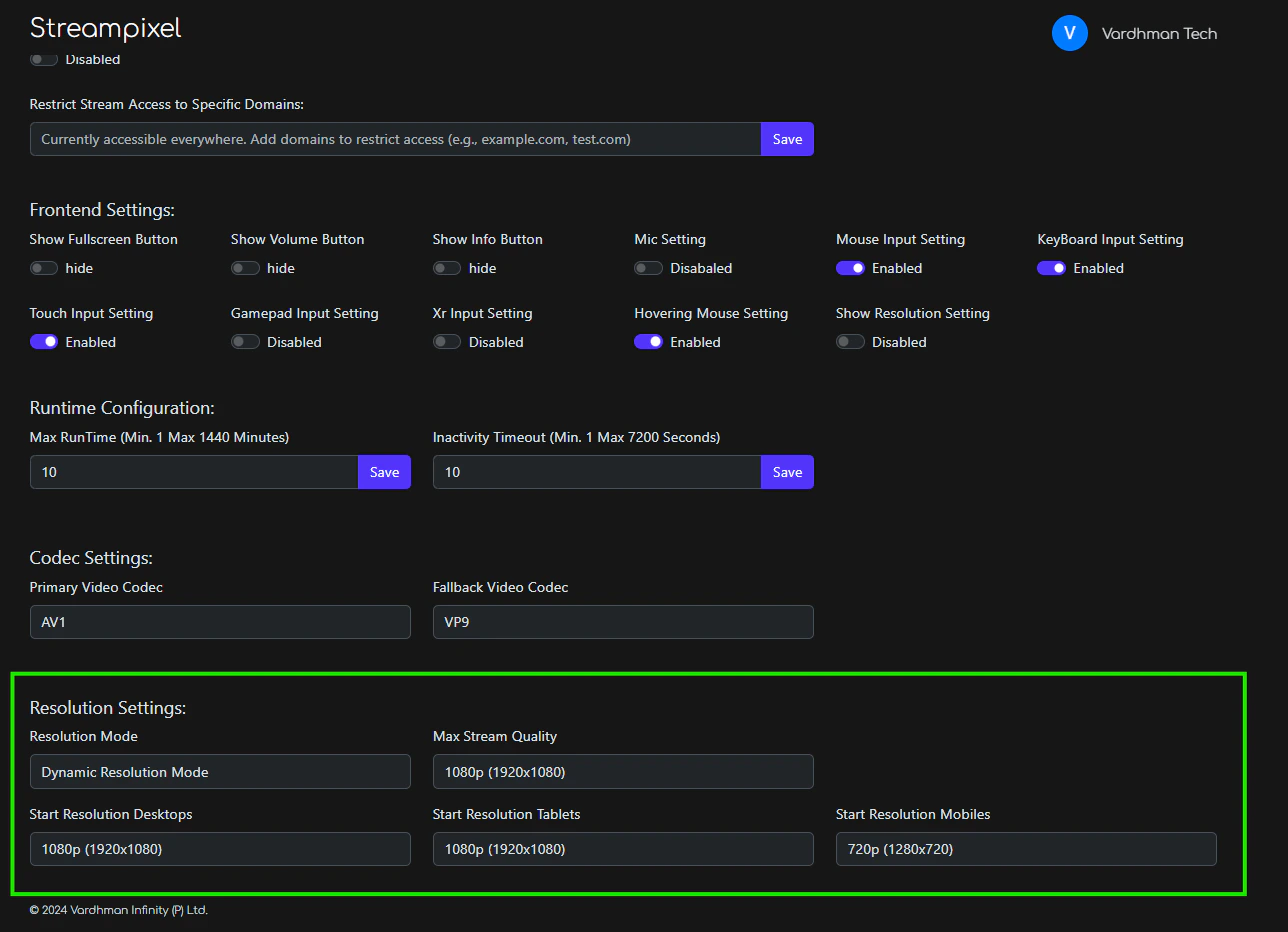
Resolution Settings

Bitrate

How much data the stream uses, in megabits per second. Higher = better quality, more bandwidth required.
SettingDefaultRangeWhat it does
Minimum5 Mbps1 – 100Floor — the stream won’t drop below this even on poor networks.
Starting10 Mbps1 – 100Initial bitrate at session start. Balance quality vs. quick connection.
Maximum50 Mbps1 – 100Ceiling — extra bandwidth above this isn’t used.
The encoder adapts within this range based on the viewer’s network. Tighten the range for predictable quality; widen it for the broadest audience.
If your audience is mostly on weak connections, lower Maximum to ~15 Mbps so the encoder doesn’t over-spend bandwidth chasing quality the network can’t deliver.

Quality Parameters (QP)

QP controls compression intensity per frame, where lower = better quality, higher bandwidth. The valid range depends on the codec — AV1 supports a wider range than H.264.
SettingDefaultWhat it does
Min QP21Lower bound on compression. Sets the best quality the encoder will produce.
Max QP75Upper bound. Sets the worst quality before bandwidth gets cut further.
The encoder picks QP per frame within this range — high motion scenes drift toward Max QP, static scenes drift toward Min QP. For most projects the defaults are correct.
Don’t tune QP unless bitrate alone isn’t getting you the quality you want. Wrong values can produce worse streams than the defaults.
Pick the preset that matches your project, then fine-tune from there. AV1 is the recommended primary codec for every use case. Set a fallback for browsers or UE versions that don’t support AV1.
Use casePrimary / FallbackBitrate (min / start / max)Min QPMax QP
ArchViz / Digital TwinAV1 / VP95 / 5 / 40 Mbps2175
Chatbot / AvatarAV1 / H.2645 / 5 / 30 Mbps2160
Games / InteractiveAV1 / H.2645 / 5 / 75 Mbps21100
ArchViz and Digital Twin scenes benefit from VP9 as a fallback because it keeps detail well at constrained bandwidth. For chatbots and games, H.264 is the safer fallback for the broadest device reach.

Next

Codec settings

Pick the right codec for your audience.

Performance tuning

Hit your latency, FPS, and bitrate targets.